
Introduction
Welcome to Week 49 of 2025!
Going back to data applications this week. I come across a constant request from clients when building data apps: How can I let users view all the records but not be able to edit them? This week we are going to figure out how we can do this using child tables and conditional actions. It’s a great way to make sure you are in control of your application!
Good luck!
-Jess
Need access to Sigma?
Note: You will only have view access to WOW Workbooks, Folders, and Workspaces, not edit access. Please create your WOW Workbooks under “My Documents.” We suggest creating a folder to organize all your workbooks.
Requirements
- Hidden Data Page:
- Create an input table with the following fields:
- Project Name: text
- Estimated Start Date: date
- Estimated End Date: date
- Project Type: text (Internal/External)
- Project Description: text
- Created By: system column
- Created At: system column
- ID: system column
- Edit: calculation (if current user email matches created by then ✏️)
- Add a few records to the table with test projects, dates and types
- Add a text entry control named Edit Row ID above the input table
- Create an input table with the following fields:
- Create New Project Modal:
- Add a new modal named “Create a New Project”
- It should contain controls to allow users to select values for Project Name, Estimated Start Date, Estimated End Date, Project Type, and Project Description (everything other than description should be required)
- Set up actions on the primary modal button that check to ensure all required fields are populated and inserts a new record into the input table on your hidden data tab as well as clears the controls and closes the modal
- Edit Project Modal:
- Add a new modal named “Edit Project”
- It should contain controls to allow users to select values for Project Name, Estimated Start Date, Estimated End Date, Project Type, and Project Description (everything other than description should be required)
- Set up actions on the primary modal button that checks to ensure all required fields are populated and updates a record in the input table based on the “Edit Row ID” control you created on the hidden data page. Add actions to the sequence to clear the controls on the modal and the “Edit Row ID” and close the modal.
- Main Page:
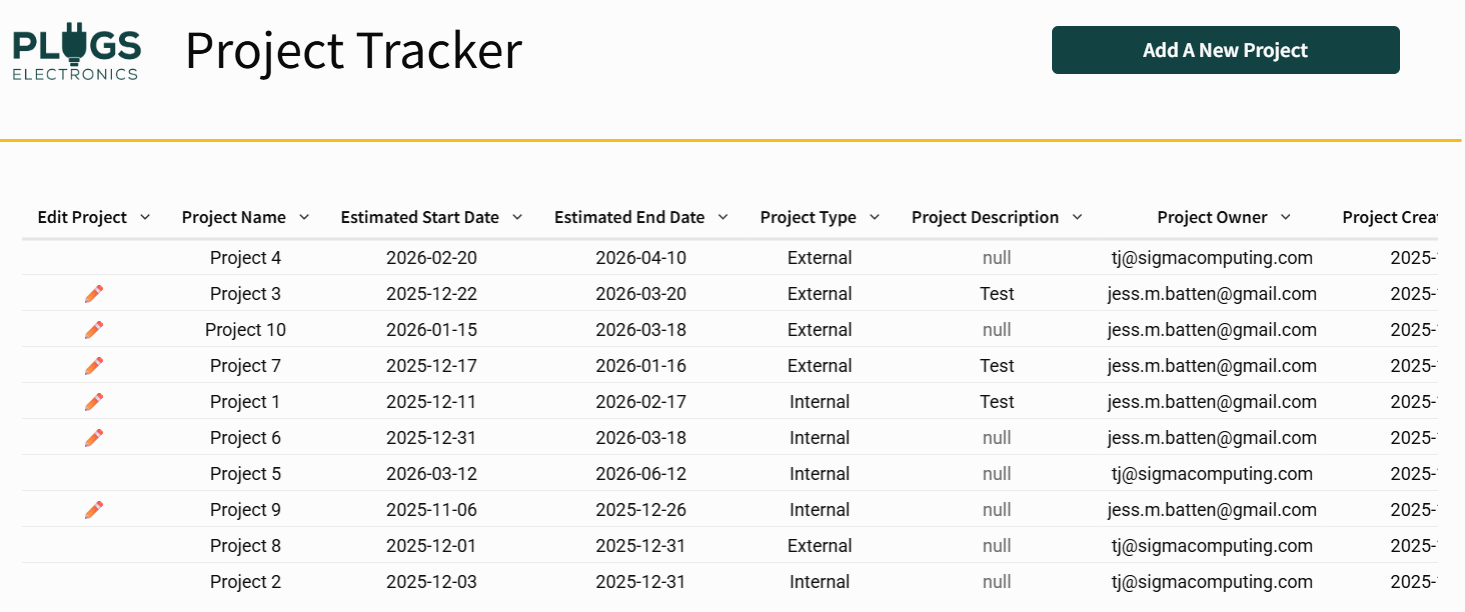
- Add a header for your application called “Project Tracker”
- Add a button that will open a modal with a “Create New Project” form
- Create a child table element sourced from your input table on the hidden data page, move the “Edit” field to the front on the table so it’s the first thing users see (try changing the formatting of the table to improve the visual)
- Add an action to the table that will trigger when the “Edit” field (calculation with the pencil icon) is clicked. It should only work if the cell shows the pencil icon – hint: only able to edit if the current user is the one who created the project
- Set “Edit Row ID” to match the ID of the row selected
- Set all controls on the “Edit Project” modal based on the row selected
- Open the “Edit Project” modal
- Extra Credit:
- Create a modal that will pop-up telling the user to enter more information if they try to save without all required fields populated on either the “Create New Project” or “Edit Project” modals and ensure that the user is directed back to the correct pop-up
Dataset
- No Source Data Application (uses blank input table)
Share
After you finish your workout, share on LinkedIn, Sigma’s Community page, (or Twitter) using the hashtags #WOW2024 and #SigmaComputing, and tag Ashley Bennett, Eric Heidbreder, Jess Batten, Carter Voekel, and Michal Shaffer!
Create an interactive, sharable version of your solution here.
Also, make sure to fill out the Submission Tracker so that we can count you as a participant this week to track our participation throughout the year.
Solution
Coming Soon…