
Introduction
Welcome to Week 52 of 2025!
This week, we’re going to take it easy and practice utilizing some new UI elements in Sigma: Headers and Navigation Elements!
They have not been around for long, but I already use them everywhere I can.
Good luck!
-Ashley
Need access to Sigma?
Note: You will only have view access to WOW Workbooks, Folders, and Workspaces, not edit access. Please create your WOW Workbooks under “My Documents.” We suggest creating a folder to organize all your workbooks.
Requirements
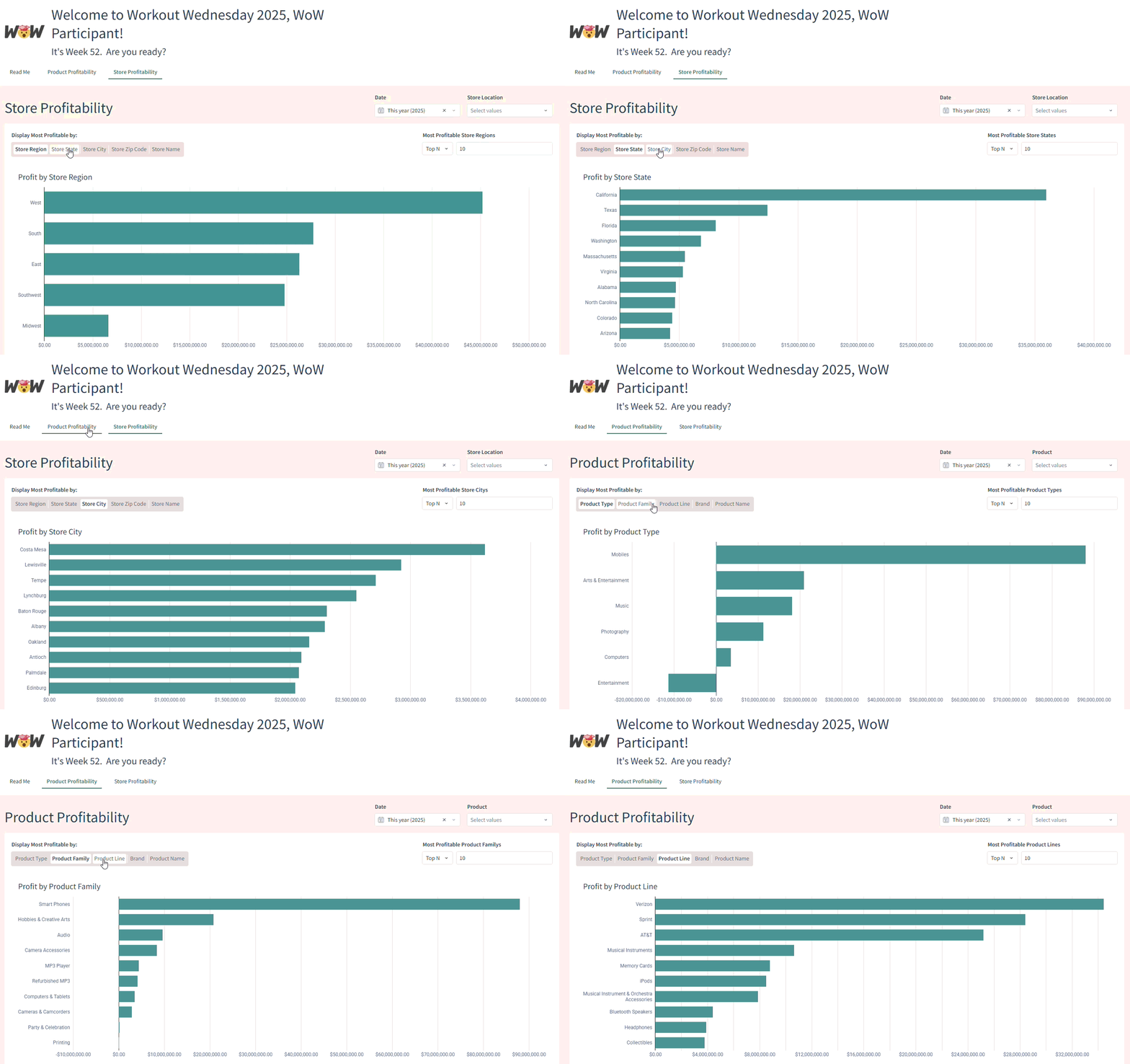
The goal of this challenge is to create a workbook with multiple visual pages, utilizing a Header and Navigation Element to allow users to interact with the workbook. Each page should contain multiple elements. As always, we will have a hidden data sheet to source our data from. There should be at least one control that is synced between the pages. Finally, the tabs at the bottom should be hidden, to give a more application-like experience for our end users.
Hidden Data Sheet
On this sheet, all we need is a table containing our base data: RETAIL/PLUGS_ELECTRONICS/PLUGS_ELECTRONICS_HANDS_ON_LAB_DATA
In this base data table, create two Ragged Hierarchy columns to be used as filters on their respective pages:
- Product: Product Type, Product Family, Product Line, Brand, and Product Name
- Store Location: Store Region, Store State, Store City, Store Zip Code, and Store Name
Visible Page: Product Profitability
Create some visible elements that show the Profit Metric by various levels in our Product Hierarchy:
- Chart with drill-in control to change the dimension between the columns in our Product Hierarchy. Display only the Top values, with user input to change the number of top values
- Pivot Table to display our Product Hierarchy columns by Month
- Create 2 controls that affect these two elements:
- Date, which should be synced across our pages
- Product (containing our hierarchy)
Visible Page: Store Profitability
Create some visible elements that show the Profit Metric by various levels in our Store Location Hierarchy:
- Chart with drill-in control to change the dimension between the columns in our Store Location Hierarchy. Display only the Top values, with user input to change the number of top values
- Pivot Table to display our Store Location Hierarchy columns by Month
- Create 2 controls that affect these two elements:
- Date, which should be synced across our pages
- Store Location (containing our hierarchy)
Header
Add a header to the workbook containing:
- An image of your choice
- A welcome message, custom to the Current User
- A navigation element that allows users to traverse the workbook
Finishing Touches
- Give each workbook page a descriptive title
- Arrange your elements into a cohesive dashboard
- Update your workbook’s settings to give it a more personalized flair
- Hide the page tabs in view mode
Food for thought
- How does the navigation element handle hidden pages?
- Pages hidden will not appear in a navigation element. This includes pages that are always hidden, as well as pages with custom visibility that the current user does not have access to see.
Tips
- You can choose to make your header Sticky or Scrollable
- By default, navigation bars will display visible pages in the workbook, but you could manually set links and their corresponding destinations
Dataset
RETAIL/PLUGS_ELECTRONICS/PLUGS_ELECTRONICS_HANDS_ON_LAB_DATA
Share
After you finish your workout, share on LinkedIn, Sigma’s Community page, (or Twitter) using the hashtags #WOW2025 and #Sigma, and tag Ashley Bennett, Eric Heidbreder, Jessica Batten, and Carter Voekel!
Create an interactive, sharable version of your solution here.
Also, make sure to fill out the Submission Tracker so that we can count you as a participant this week to track our participation throughout the year.
Solution
Coming soon….